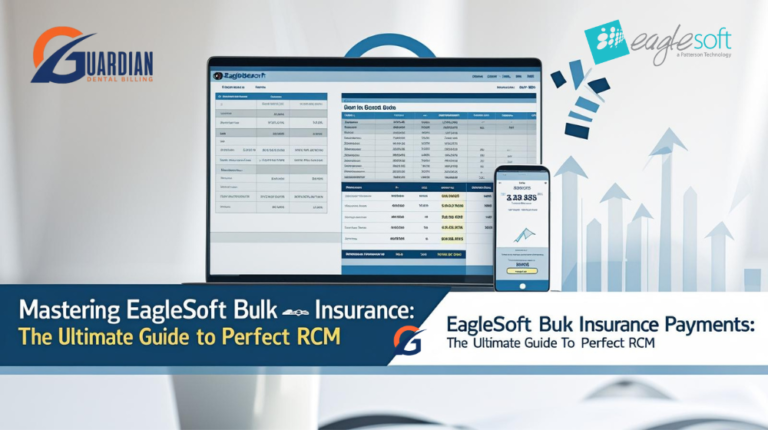
Mastering Eaglesoft Bulk Insurance Payments: The Ultimate Guide to Perfect RCM
For any high-performing dental practice, the difference between a chaotic front desk and a streamlined revenue cycle often comes down to how you manage Eaglesoft Bulk Insurance Payments. If your team is still posting insurance payments patient-by-patient instead of utilizing the Eaglesoft Bulk Insurance Payments feature, you aren’t just losing valuable time—you are increasing the risk of human error that leads to bloated aging reports.
At Guardian Dental Billing, we have mastered the art of processing Eaglesoft Bulk Insurance Payments to ensure that “big checks” from carriers like Delta Dental or MetLife are reconciled to the penny. By moving away from manual, individual entries and adopting the Eaglesoft Bulk Insurance Payments workflow, your practice can finally achieve a 98% clean claims rate and keep your overhead low.
At Guardian Dental Billing, we’ve seen how mastering the Eaglesoft Bulk Insurance Payments tool can transform a practice’s financial health. By consolidating multiple claims into a single entry, you ensure that your software reflects your bank account to the penny, maintaining that elite 98% clean claims rate that every DSO and private practice owner dreams of.
Why Bulk Posting is the Foundation of a Healthy Ledger
The primary advantage of Eaglesoft Bulk Insurance Payments isn’t just speed; it’s perfect financial reconciliation. When an insurance carrier like Delta Dental or MetLife sends a single EFT for $10,000 covering thirty different patients, posting those individually makes it nearly impossible to track “missing” funds accurately. However, by processing these through the Eaglesoft Bulk Insurance Payments system, you ensure every dollar is accounted for.
By utilizing the Eaglesoft Bulk Insurance Payments tool, you create a direct, transparent link between the EOB (Explanation of Benefits) and your deposit slip. This high level of transparency is the only way to consistently achieve zero pending claims in the 90+ days category. The Eaglesoft Bulk Insurance Payments workflow forces the user to reconcile every cent of that check before the transaction can be finalized, eliminating the “lazy posting” that leads to A/R disasters.
Getting Started: Access and Preparation
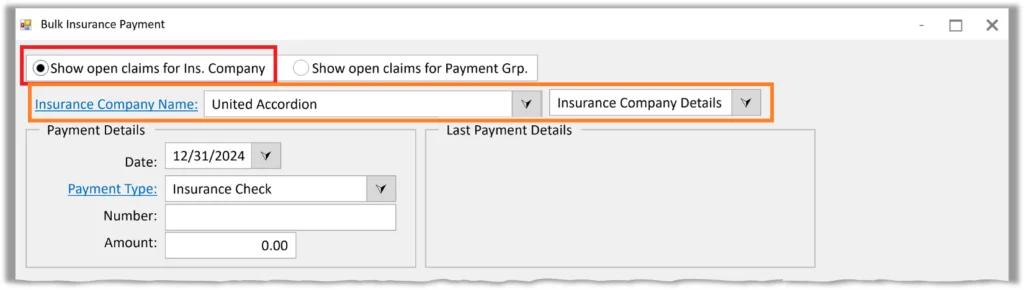
To begin, navigate to Activities > Bulk Insurance Payment. This screen is your command center for revenue recovery. However, before you even type in a check number, there is a “secret” to making this tool work efficiently: Standardization.
Many Eaglesoft databases are cluttered with duplicate insurance carriers—think “Delta Dental of PA” vs. “Delta Dental Penn.” If these aren’t grouped, you’ll find yourself jumping between screens, defeating the purpose of a bulk tool.
-
The Pro Tip: Go to your Insurance Company List and edit the Payment Group. By assigning a single group name to all variations of a carrier, they will all populate in the same bulk payment window. This simple cleanup step can shave hours off your weekly administrative workload.
The Anatomy of an Accurate Bulk Entry
Once you have selected your insurance carrier or payment group, it’s time to input the header data. This is where many offices make small mistakes that lead to large headaches during tax season.
-
Payment Type Selection: Never leave this as the default “Check” if the payment was an EFT or an Insurance Credit Card. Accurate bookkeeping starts here.
-
The Reference Number Logic: Don’t just enter a random number. At Guardian, we recommend entering the EFT/Check number followed by the date it hit the bank. This creates a “searchable trail” for your accountant.
-
The Total Check Amount: This amount acts as your “anchor.” Eaglesoft will list this as Undistributed initially. Your goal—and the system’s requirement—is to distribute this entire sum across the outstanding claims until that number hits exactly $0.00.
Precision Posting: The Line Item Rule
To keep your production reports accurate and your providers happy, you must post by line item. When you select a claim within the bulk window, click Distribute.
This allows you to assign specific dollar amounts to specific procedures. If a claim for a Prophy, Exam, and Bitewings comes back with the Exam denied, line-item posting ensures the doctor’s production isn’t unfairly reduced by a “lump sum” adjustment. It’s this level of detail that prevents provider payroll disputes and ensures your dental AR management remains beyond reproach.
Troubleshooting and Mastering the Distribution Phase
Once the header data is set, you enter the most critical phase of Eaglesoft RCM: the distribution of funds. This is where many billing teams lose their way, but it is also where Guardian Dental Billing excels. To maintain a 98% clean claims rate, every penny must be accounted for before the “Save” button is ever clicked.
Navigating the “Undistributed” Balance
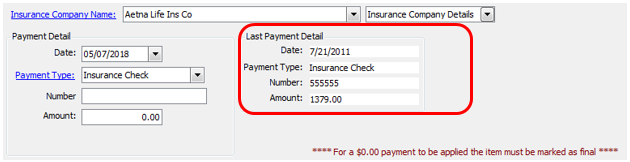
As you go down the list of outstanding claims, you will enter the actual paid amount from the EOB. If the payment matches the estimate, the process is seamless. However, the true test of dental AR management occurs when the numbers don’t align.
-
Overpayments: If insurance pays more than estimated, you must adjust the patient’s ledger to reflect the credit.
-
Underpayments: If insurance pays less, you must immediately determine if the remaining balance belongs to the patient or if it requires a “Contractual Write-off.”
-
Zero-Dollar Claims: Never skip a claim just because the payment is $0. If a claim is denied, you must still “post” the $0 payment and choose the appropriate denial code. This is the only way to clear that claim from your aging report and keep your zero pending claims in the 90+ days category goal on track.
The “View” Tools: Your Secret Weapons
Within the Bulk Payment window, Eaglesoft provides three specific buttons that allow our team to resolve issues without ever leaving the screen:
-
View Coverage Book: If you notice a specific procedure is consistently paying differently than estimated, use this to update the coverage table on the fly.
-
View Claim: If a payment looks wrong, quickly check how the claim was submitted (e.g., were the correct X-rays attached?).
-
Go to Account: If a patient has an existing credit or an old balance that needs to be reconciled with this new payment, this shortcut is a lifesaver for ledger accuracy.
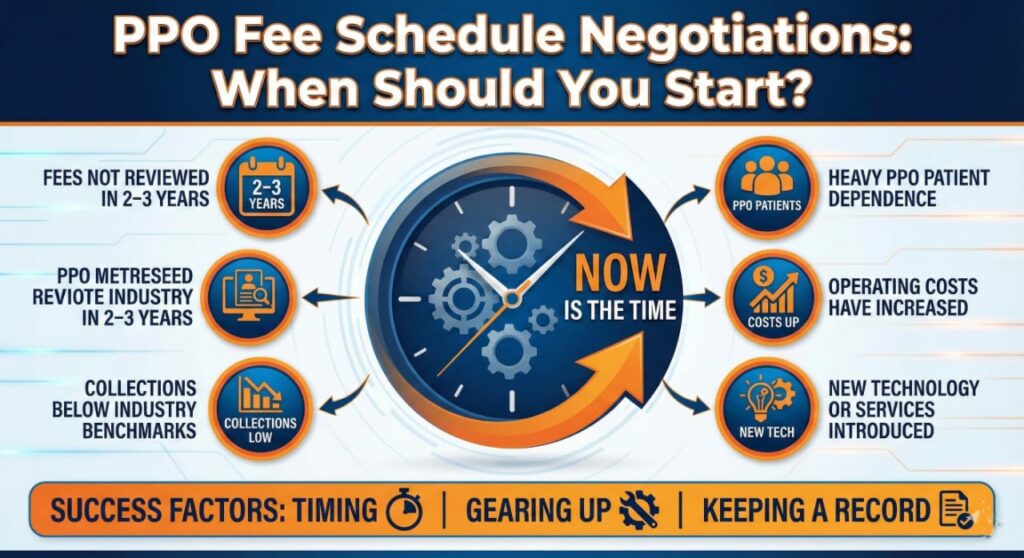
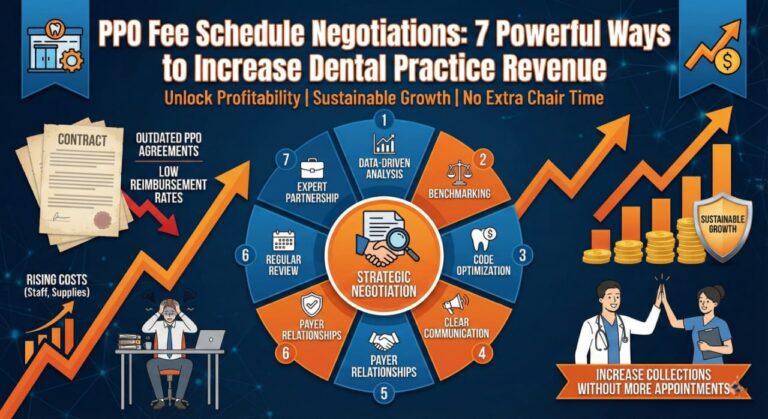
With rising overhead and shrinking reimbursements, PPO fee schedule negotiations are more critical than ever for dental practice profitability.
Finalizing the Transaction: The Reconciliation Guardrail
The beauty of the Eaglesoft Bulk Insurance Payments tool is its built-in safety net. The software will technically prevent you from saving the entry if your Unassigned Total at the bottom does not equal zero.
This “forced reconciliation” is exactly why we recommend this tool for DSOs and multi-location practices. It prevents the common “missing $50” error that plagues manual posting. When you finally hit Save, Eaglesoft generates a single, clean entry in your daily deposit. For your bookkeeper or office manager, this means the bank statement and the software report finally match perfectly—no math required.
Red Flags to Watch For
-
Unprocessed Claims: If a claim appears in your Bulk window but isn’t on the EOB, do not leave it pending indefinitely. Mark it for follow-up.
-
Partial Payments: If insurance pays for the exam but requests more info for the crown, post the exam payment via the “Distribute” button and leave the crown line-item open. This keeps your dental AR management precise and avoids “lumping” errors that hide unpaid procedures.
FAQs: Expert Solutions for Eaglesoft Bulk Payment Challenges
What is a bulk check in insurance?
A bulk check (or bulk EFT) is a single payment issued by an insurance carrier that covers multiple claims for different patients. Instead of sending fifty individual $100 checks, a carrier like Cigna will send one $5,000 check.
For a dental practice, receiving a bulk check is a major efficiency booster—provided you use the Eaglesoft Bulk Insurance Payments tool. It allows you to reconcile a large sum of money at once, ensuring that every patient’s ledger is updated simultaneously while the bank deposit remains a single, easy-to-track line item.
What is the primary benefit of using Eaglesoft Bulk Insurance Payments instead of individual posting?
The most significant advantage is reconciliation accuracy. When you receive a single check or EFT that covers multiple patients, the bulk tool ensures the total distributed amount matches the deposit exactly. This eliminates “ghost balances” and is the fastest way to achieve zero pending claims in the 90+ days category. Individual posting often leads to small mathematical errors that bloat your aging report over time.
How does bulk posting impact my dental AR management?
Effective dental AR management relies on real-time data. Bulk posting allows you to clear dozens of claims in a single session, which immediately updates your accounts receivable reports. At Guardian Dental Billing, we use this tool to ensure that secondary claims are triggered the same day the primary payment is received, preventing any “lag” in your revenue cycle.
Can I use the bulk payment tool for Insurance Credit Cards and EFTs?
Yes. In the Payment Type dropdown, you should specify whether the payment is an Insurance Check, EFT, or Credit Card. Recording the correct type is essential for clean bookkeeping and simplifies bank reconciliation at the end of the month.
What should I do if the “Unassigned Total” does not reach $0.00?
Eaglesoft is designed with a “guardrail” that prevents you from saving a bulk entry if the math doesn’t add up. If you have a remaining balance, check for:
-
Contractual Write-offs: Ensure you have entered the PPO adjustment correctly.
-
Withheld Taxes: Sometimes insurance withholds a small fee or tax; this should be documented as a “Bulk Adjustment” so your check total remains accurate.
-
Partial Payments: If a claim was only partially paid, ensure the “Close Claim” box is unchecked so it remains on your 90+ day AR for follow-up.
Why is line-item distribution important for my clean claims rate?
Posting at the line-item level is the only way to ensure your 98% clean claims rate translates into accurate provider production. It allows you to see exactly which procedure code (e.g., D1110 vs. D0120) was paid or denied. Without this level of detail, your software’s “Bluebook” (fee estimates) will never be accurate, leading to wrong patient estimates in the future.
How do you record a payment for insurance?
In Eaglesoft, recording an insurance payment is a specialized process that differs from a standard patient payment.
-
Navigate to the Account: You can post directly from the Patient Account or via the Bulk Insurance screen.
-
Select the Claim: Highlight the specific outstanding claim that matches your EOB.
-
Enter the “Paid” Amount: Enter exactly what the insurance company paid.
-
Adjustments: This is the most important part of dental AR management. If the insurance paid less than your office fee, you must apply a “Contractual Write-off” (for PPO plans) to balance the ledger.
-
Post and Finalize: Once the payment and adjustments are entered, the claim status changes from “Outstanding” to “Paid,” clearing it from your aging report.
How do I add a payment type in Eaglesoft?
As practices adopt new technologies like Merchant Advocates or specific insurance credit cards, you may need to add new payment categories for better bookkeeping.
-
Go to Lists: From the main menu, select Lists > Standard Lists.
-
Select Payment Types: Choose “Payment Types” from the list on the left.
-
Click New: Type in the name of your new payment method (e.g., “CareCredit,” “Stripe,” or “Insurance EFT“).
-
Assign Category: Ensure you categorize it correctly (Patient Payment vs. Insurance Payment) so it appears in the correct dropdown menus during posting. This level of system organization is a hallmark of software mastery.
How to create a payment plan in Eaglesoft?
When insurance doesn’t cover the full cost, offering a payment plan is a great way to increase case acceptance without letting your AR spiral out of control.
-
Open the Account: Go to the patient’s Account screen.
-
Access Payment Plans: Click on the Payment Plan button (usually located on the right-hand toolbar).
-
Set the Terms: Enter the total amount to be financed, the number of months, and the interest rate (if any).
-
Schedule Payments: Eaglesoft will automatically calculate the monthly installments. You can even set these to “Auto-Post” if you have a credit card on file, ensuring a zero pending claims mentality extends to your patient balances as well.
To truly dominate dental AR management, you must understand the underlying mechanics of how money moves from the insurance carrier to your practice’s bank account. When handled correctly through Eaglesoft software mastery, bulk payments become the engine of your financial growth.
How does bulk payment work?
A bulk payment works by consolidating multiple individual obligations into one single financial transaction. In the dental world, this is a “Top-Down” approach to accounting:
-
The Aggregation: Instead of cutting 50 separate checks for 50 different patients, the insurance company’s system identifies all claims that were “Finalized” for your Tax ID during a specific pay cycle (usually weekly).
-
The Single Disbursement: The carrier issues one large EFT or check. This is accompanied by a Bulk EOB (Explanation of Benefits) or an ERA (Electronic Remittance Advice), which acts as the “map” for that payment.
-
The Distribution: This is where our expert team comes in. We take that single “Bulk” amount and enter it into the Eaglesoft Bulk Insurance Payments window. We then distribute the funds to each individual patient’s claim, line by line.
-
The Zero-Out: The process is only complete when the “Undistributed” balance hits zero. This confirms that every dollar sent by the insurance company has been successfully applied to a patient’s ledger, keeping your clean claims rate at 98%.
What is an example of a bulk payment?
Imagine your dental practice treats 15 different patients who all work for the same local factory and use Delta Dental PPO.
-
The Scenario: Throughout the week, you send 15 separate claims for cleanings, fillings, and a crown.
-
The Bulk Payment: On Friday, instead of 15 envelopes, you receive one EFT for $2,450.
-
The Breakdown: The attached EOB explains that this $2,450 covers:
-
$1,200 for 10 Prophys (Cleanings)
-
$450 for 4 sets of Bitewings
-
$800 for 1 Crown (partial payment)
-
-
The Execution: At Guardian Dental Billing, we don’t just “post” the $2,450. We go into the bulk tool, find those 15 patients, and assign the exact dollar amounts to the exact dates of service. If the crown payment was $50 short, we flag it immediately for an appeal. This ensures that your zero pending claims in the 90+ days category target is protected.
What makes Eaglesoft Bulk Insurance Payments different from standard payment posting?
Standard posting handles a single claim at a time, which is inefficient for high-volume practices. Eaglesoft Bulk Insurance Payments allow you to load all outstanding claims for a specific carrier—or a predefined Payment Group—into one interface. This streamlined approach ensures that every dollar from a single check is accounted for, significantly reducing the manual labor usually associated with dental AR management. By centralizing the process, we maintain a 98% clean claims rate because the software forces a full reconciliation before the batch can be posted.
How do Payment Groups improve the Eaglesoft Bulk Insurance Payments workflow?
A common pain point for offices is having multiple entries for the same insurance company (e.g., “MetLife” and “MetLife Dental”). If these aren’t linked, you have to run separate batches. By setting up Payment Groups, you link these entities together. When you use the Eaglesoft Bulk Insurance Payments tool, it pulls claims from every linked carrier into one view. This is a core part of our software mastery at Guardian Dental Billing, as it prevents claims from sitting in the 90+ day AR simply because they were overlooked during a standard posting session.
Can Eaglesoft Bulk Insurance Payments handle adjustments and PPO write-offs?
Yes. Within the distribution window, you can enter the exact payment per line item and apply the necessary contractual adjustments simultaneously. This ensures your dental AR management remains precise. When we process Eaglesoft Bulk Insurance Payments, we verify that every adjustment matches the EOB exactly. This “Zero-Pending” approach is why we can guarantee zero pending claims in the 90+ days category, as it prevents unallocated balances from cluttering your aging report.